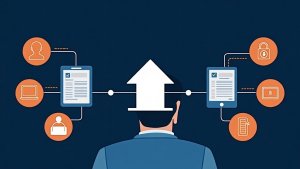
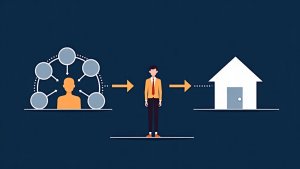
This walkthrough is the operational deep-dive on configuring the Facebook ads integration inside BNTouch: how to set up the audience definition with filter criteria, how to assign which CRM user’s records get included, how to configure the lead download source, and how the overnight sync schedule works if you do not want to trigger pushes manually. Where the Aiden walkthrough covered why the integration matters, this one covers exactly which fields to fill on which screen.
To create a new Facebook audience from BNTouch contacts, you go through a small form on the audience setup screen. The walkthrough names every input:
Audience name and brief description. “Add a brief description, use the check boxes below to select which Facebook ads accounts you want to sync the audience with”.
Facebook ad account selection. If you manage multiple Facebook ad accounts (one for the brokerage, one for a partnered agent’s co-branded campaigns), check the specific accounts you want this audience pushed to.
CRM user records to include. “Then choose which crm users records will be included in the audience”. A team running one shared pipeline can include everyone. A brokerage where each LO runs their own ads might restrict the audience to that LO’s records only.
Filter criteria. “Below you can enter filter criteria in [the audience builder]”. This is where the audience becomes useful. Filters drive precision: past borrowers funded 18 to 36 months ago, status equals past client, loan type equals conventional, ZIP code in a list, etc.
Manual sync vs. overnight sync
The integration runs on two cadences. The walkthrough names both:
Manual sync is triggered with checkboxes and a button: “By checking the boxes to the left and clicking the sync selected with facebook button [above]”. Use this when you have just edited an audience filter and want the change reflected on Facebook before the overnight job runs.
Overnight sync handles the regular case: “Your audiences will sync with facebook overnight”. So a borrower whose loan funded today gets added to the past-borrowers audience by tomorrow morning without anyone touching the integration.
This matters for campaign hygiene. If you are excluding existing borrowers from a new-lead acquisition campaign on Facebook, the overnight sync ensures the exclusion list stays current as new files close.
The lead download source setup
The opposite direction (Facebook leads into BNTouch) lives in the lead downloads section. “In the lead downloads section you will see a separate list of [lead sources]”. To wire up a new source: “Once ready click add new to set up the lead download source”.
Configuration on the lead download side includes:
Which Facebook page the lead form lives on.
Which lead form on that page you are pulling from (if a page has multiple forms running, you can sync them independently or together).
Manual vs. automatic download cadence.
The walkthrough notes both options: “You can download new leads from facebook manually using the check boxes to the left and the sync selected with facebook button above the list. Alternatively the leads will be synced [automatically]”.
The diagnostic that prevents most “where are my leads” tickets
Most support requests on this integration come from loan officers who do not know whether a Facebook lead landed in BNTouch correctly. The walkthrough names the diagnostic screen for exactly that question: “Check the status of imported leads. Any leads that have not successfully been imported to records in your crm can be re-downloaded here”.
So when an LO says “I ran a Facebook ad over the weekend and I cannot find the leads,” the answer is: open the lead downloads screen, look at the import status column, and click the re-download button on any failed imports. No support ticket required.
A specific scenario: building a “do not market” exclusion audience
One audience worth setting up that most teams skip: an exclusion audience for past borrowers, current pipeline borrowers in process, and anyone who has opted out of marketing. Sync that audience to Facebook and add it as the exclusion on every prospecting campaign. The result is that your ad budget never gets spent showing prospecting ads to people you are already working, which both saves spend and prevents confusing messaging conflicts (showing a refi ad to someone who closed with you 30 days ago is not a great look).
Setup: in BNTouch, create a saved filter that pulls active pipeline plus past borrowers plus opt-out flag. Sync as a Facebook custom audience. In every prospecting Facebook campaign, add that audience as an exclusion at the ad set level. The overnight sync keeps the exclusion list current.
Honest limits
Audience match rates depend on data quality. Facebook matches CRM contacts to user profiles by hashed email and phone. If your CRM records have stale emails or missing phones, the match rate drops and so does targetable reach.
The sync cadence is not real-time. Overnight sync covers most cases; if you need a same-day push, manual sync is the path. There is no documented webhook trigger that pushes a contact to Facebook the second the record updates.
Failed lead imports are flagged but not auto-resolved. The status column tells you when imports failed, but you have to click re-download to retry. Build a weekly habit of checking this screen if Facebook is a meaningful lead source.
Try the configuration on your own ad account
If you want a hands-on walkthrough of audience setup, filter criteria, and the lead download source configuration with your own Facebook ad account, request a demo. The integrations page lists every connected tool in the BNTouch stack.