A BNTouch marketing campaign is just a sequence of steps, and each step is one of seven action types: email, SMS, postcard, video, task, update-field, or push notification. Step type, interval (immediate / relative day / exact date), recipient (borrower vs partner), and content are the four decisions per step. The step list view, accessible by clicking any campaign name in the marketing tab, is where you build, reorder, edit, and copy these steps. Meta tags inside step content auto-pull data from the CRM record at send time so the email or SMS is personalized without any token gymnastics.
“Each campaign is made up of a series of steps, each representing an action of some kind that is taken” [1IlrBJHjsCM m0]. So a campaign is not a single email; it is an ordered list of steps that fire on a schedule, against a set of records that meet trigger criteria. Steps can be of many types and intervals can be flexible.
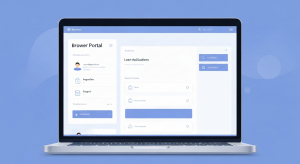
You open the step list by going to the marketing tab and clicking the blue name link of any campaign. “By default the first screen that will display is a list of the steps in that campaign” [1IlrBJHjsCM m1]. From this screen you see every step, in order, with the trigger, the step type, the send-to recipient, and the multi-language indicator.
Step triggers: three kinds of timing
The walkthrough names three trigger types you can use per step:
Immediate on campaign join
“The step will trigger as soon as a record is added to the campaign” [1IlrBJHjsCM m2]. Used for the welcome email, the speed-to-contact text, the first task assignment to the LO. Anything that needs to fire the moment a record enters.
Relative day (X days after campaign start)
This is the most common trigger. Configure the step to fire 3 days after the borrower entered the campaign, then 7 days, then 14, etc. The step list shows each step’s day offset so you can see the cadence at a glance.
Exact date
“Steps based on exact date will activate based on the specified date, regardless of the duration of the campaign” [1IlrBJHjsCM m2]. Useful for campaigns that need to fire on a calendar event (e.g., a year-end review email that goes on December 15 regardless of when the borrower entered the campaign).
What the step list columns tell you
The step list view exposes per-step information in columns:
Step type (email, SMS, postcard, video, task, update-field, push).
Send-to recipient (borrower, partner, or a specific user on the team).
Multi-language indicator: “[Whether] the step has multi-language support and will automatically send the appropriate version of the step based on the recipient’s preferred [language]” [1IlrBJHjsCM m3]. So a step that has both English and Spanish versions shows the multi-language flag and the system picks the right version per borrower.
Step name (becomes the subject line for emails and SMS).
Last edited timestamp.
The actions menu per step
“The actions icon in the final column can be used to interact with an individual step. From this menu you can edit the contents of a step, delete the step from the campaign, [send a test, or copy the step]” [1IlrBJHjsCM m4]. The copy action is the most useful and underused. If you have a step that works, copy it to another campaign instead of rebuilding from scratch.
Building a single step, field by field
When you click add new step or edit an existing one, the editor opens with these inputs:
Step name (becomes the email subject)
“Next, set the step name. This will be the subject in the case of emails, SMS messages, and the like” [1IlrBJHjsCM m5]. The same field doubles as the subject for sendable steps and as the descriptive label for non-sendable steps (tasks, update-field). You can include emoji in the subject using the emoji icon to the right.
Template selection
If you haven’t set the campaign to use a default template, you can select a stationery template per step. The template controls the email branding (logo, signature, layout) so every step in a campaign can look consistent across the brokerage.
Content body
The text editor is similar to standard email composition. You can “add images or videos, link to external websites, attach files, enter html tags, and more” [1IlrBJHjsCM m6]. For video email steps, you can record a video directly into the editor using the webcam tool, or import a video from your YouTube library.
Meta tags for personalization
This is the gold of the step editor. “You can use meta tags in this field to automatically pull relevant data fields from records and information in your crm” [1IlrBJHjsCM m6]. So instead of typing “Hi {first_name}” and managing tokens manually, you insert the borrower-first-name meta tag and it pulls the borrower’s name at send time. Same for loan amount, property address, agent name, anniversary date, and dozens of other fields.
Automatic vs manual confirmation
One small but useful toggle. “This step will only be sent automatically upon its interval or date if this box is checked. If it is not checked, you will need to manually confirm its submission from your pending campaigns list in the dashboard tab” [1IlrBJHjsCM m7]. So you can build steps that fire automatically (the default for drip emails) or steps that require an LO to review and confirm before sending (useful for higher-stakes touches like a rate quote that should not auto-fire).
Editing an existing step
“Choosing edit, this will open the same text editor as when adding the step. And any changes you make will only be saved when you click the update letter on that screen” [1IlrBJHjsCM m8]. So edits are not saved automatically; you have to hit update for the changes to land.
Copying steps to other campaigns
“You can also copy steps from this step list by checking the boxes [next to the steps you want to copy]” [1IlrBJHjsCM m8]. This is the workflow that compounds over time. A high-performing email in your new-lead campaign can be copied as a starting point for your refi opportunity campaign. You preserve the structure and meta tags, then adjust the copy.
A specific scenario: building a five-step new-lead campaign
A loan officer building a new-lead nurture sequence might design it as:
Day 0, immediate on campaign join, email step: “Thanks for your interest, here’s what happens next” with meta tags for the borrower’s first name and your direct phone.
Day 0, immediate, task step: Task to the LO to make first contact call within 5 minutes.
Day 1, relative, SMS step: “Wanted to make sure you got my note, here’s a link to your borrower portal.”
Day 3, relative, email step: Plain-English explainer on the next steps in the process, with the LO’s video introduction embedded.
Day 7, relative, task step: Task to the LO to call again if the borrower has not advanced.
Five steps, four step types (email, task, SMS, video), one campaign. Configure once, runs forever.
Honest limits
Step intervals are whole numbers. You cannot fire a step at “2.5 days” or “12 hours.” Build around whole-day intervals.
Some step types require modules. SMS and pre-recorded voice steps require BNTouch Voice. Postcard steps require the postcard module. If you do not see a step type in the dropdown, the module is not active.
Meta tags only pull fields that exist on the record. If a custom field is empty on a borrower, the meta tag renders as blank in the email. Build campaigns assuming some fields will be missing on some records.
Automatic confirmation requires the box to be checked. Easy to miss when building a step in a hurry; if a campaign step is not firing, check whether the automatic confirmation box is unchecked on that step.
Build a campaign step on your account
To walk through the step editor with a real campaign on a sandbox account, request a demo and ask the BNTouch team to show the step list view and the editor. The mortgage CRM page covers the underlying campaign engine.